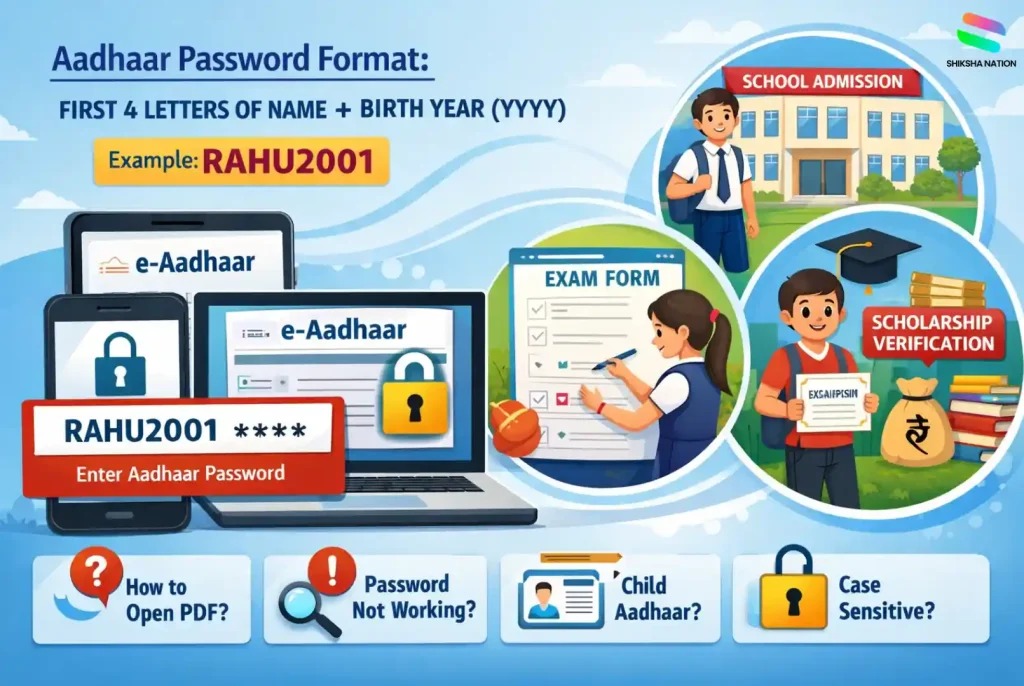
Why e-Aadhaar PDF Is Password Protected
The e-Aadhaar PDF downloaded from the UIDAI website comes with a password to keep personal information safe. Aadhaar contains sensitive details such as name, date of birth, and Aadhaar number. A password protected Aadhaar file helps ensure that only the rightful person can open and view the document.
This security system is part of the UIDAI Aadhaar download process. Since the file can be downloaded on mobile phones, laptops, or shared digitally, the password acts as an extra layer of protection against misuse or unauthorized access.
Students and parents often need Aadhaar as a document during important academic processes. Some common situations include:
- Aadhaar for school admission when submitting identity documents
- Aadhaar for exam registration for competitive exams or board-related processes
- Scholarship verification where identity proof is required
Because Aadhaar is widely used in education-related processes, protecting the document with a password helps keep personal identity details secure.
What Is the Aadhaar Password Format?
When you download the e-Aadhaar PDF from the UIDAI website, the file can only be opened using a specific password format. Many users search online to understand the aadhaar password format or what is aadhaar password for pdf, especially when opening the file for the first time.
The password follows a simple rule created by UIDAI.
Aadhaar Password Formula
The password is made using:
First 4 letters of your name (in CAPITAL letters) + Year of Birth (YYYY)
This is the standard e aadhaar password format used to protect the document.
Example structure:
- Name: Priya
- Year of Birth: 2003
Password will be:
PRIY2003
This simple pattern helps users easily remember the password while keeping the Aadhaar file secure. Understanding this aadhaar password pattern becomes useful for students and parents when opening Aadhaar for admission forms, exam registrations, or identity verification.
Aadhaar Password Examples (Easy to Understand)
Understanding the password becomes easier when you see a few real examples. The Aadhaar card security password always follows the same rule: first four letters of the name in capital letters and the birth year.
Here are some aadhaar password example cases to help students and parents understand it clearly.
| Name |
Year of Birth |
Password |
| Mohit |
1998 |
MOHI1998 |
| Kavita |
2002 |
KAVI2002 |
| Riya |
2006 |
RIYA2006 |
These examples show the common aadhaar password combination used to open the e-Aadhaar file.
What If the Name Has Less Than Four Letters?
Sometimes a person’s name has only three letters. In such cases, the entire name is used along with the birth year.
Example:
- Name: Avi
- Year of Birth: 2004
- Password: AVI2004
Knowing these simple examples helps students and parents quickly open their Aadhaar PDF when submitting documents for school admission, exam forms, or identity verification.
How to Open Aadhaar PDF on Mobile or Laptop
Many students and parents download their Aadhaar from the official website but get confused when the file asks for a password. The Aadhaar download PDF is protected for security, so you must enter the correct password to view it.
Below is a simple step-by-step guide to how to open Aadhaar PDF on mobile or laptop.
Step 1: Download e-Aadhaar from the UIDAI Website
Visit the UIDAI website Aadhaar download page and download your e-Aadhaar using your Aadhaar number, enrolment ID, or virtual ID.
The file will download as a PDF document on your phone or computer.
Step 2: Open the Aadhaar PDF File
Go to the folder where the file is saved and tap or double-click the PDF. When the file opens, a box will appear asking for a password.
This is where many users search for how to open aadhar card pdf file password.
Step 3: Enter the Aadhaar Password
Type the correct password based on the format explained earlier:
First four letters of your name in capital letters + birth year (YYYY)
Make sure the letters are in uppercase while entering the password.
Step 4: View Your Aadhaar Card
Once the password is entered correctly, the PDF will open and you can see your Aadhaar details.
Students and parents often follow this process when learning how to open aadhaar card pdf on mobile for school admission forms, exam registrations, or identity verification documents.
What Is the Aadhaar Password After Download?
Many people think the password changes after downloading the Aadhaar file. In reality, the password stays the same because it follows a fixed format created by UIDAI.
If you are wondering what is aadhaar password after download or what is aadhaar password for download, the answer is simple. The password is always based on the same rule – the first four letters of your name in capital letters and your birth year.
Even if you download the e-Aadhaar again from the UIDAI website, the password formula does not change.
For students and parents, this makes it easier to open the Aadhaar file whenever it is required for school admission, exam forms, or identity verification.
Common Mistakes While Entering Aadhaar Password
Sometimes the Aadhaar PDF does not open even when the correct format is used. This usually happens because of small typing mistakes while entering the aadhaar password to open pdf.
Here are some common errors people make:
- Using lowercase letters
The password requires the first four letters of the name in capital letters. Typing small letters may cause the file not to open.
- Entering the wrong birth year
The year must match exactly with the date of birth mentioned in the Aadhaar record.
- Incorrect spelling of the name
The letters must match the name printed on the Aadhaar card.
- Confusion with initials
Some users type only initials instead of the correct first four letters.
Avoiding these small mistakes usually helps open the aadhar card pdf password file easily on both mobile phones and laptops.
When Students Need Aadhaar for Exams or Admissions
Aadhaar has become an important document in many education-related processes. Schools, exam authorities, and scholarship portals often ask for Aadhaar details to verify a student’s identity.
Both students and parents may need to submit the Aadhaar card during the following situations:
- Aadhaar for school admission
Many schools request Aadhaar as an identity document while completing admission forms or updating student records.
- Aadhaar for exam registration
Some entrance exams or competitive exams require Aadhaar details during online application or verification.
- Aadhaar for scholarship verification
Government scholarship portals may use Aadhaar to confirm student identity and link bank details.
- Identity verification during documentation
Aadhaar may also be required when submitting important academic documents.
Because of these situations, students and parents often download the e-Aadhaar PDF and open it when submitting documents for admissions, exams, or scholarship applications.
FAQs About Aadhaar Password
Q. What is the password to open Aadhaar PDF?
The password to open the e-Aadhaar PDF is created using a simple format. It includes the first four letters of your name in capital letters and your birth year (YYYY).
For example, if the name is Rohit and the birth year is 2002, the Aadhaar password will be ROHI2002.
Q. How many characters is Aadhaar password?
The Aadhaar PDF password usually has 8 characters. It includes four letters from the name and four numbers from the birth year.
Example format: NAME + YYYY.
This combination helps protect the Aadhaar document while keeping the password easy to remember.
Q. How do I open Aadhaar PDF on my phone?
To open an Aadhaar download PDF on your phone:
- Download the e-Aadhaar from the UIDAI website.
- Open the PDF file using a PDF reader app.
- Enter the Aadhaar password in the required format.
After entering the correct password, the document will open and you can view or share it when needed for exams or school forms.
Q. What if Aadhaar password is not working?
If the Aadhaar PDF password is not working, check the following:
- Make sure the first four letters of the name are in CAPITAL letters.
- Confirm the birth year is correct.
- Ensure the spelling matches the name printed on Aadhaar.
Most password errors happen because of small typing mistakes.
Q. Is Aadhaar password the same for everyone?
No, the Aadhaar password is different for every person.
It depends on the individual’s name and year of birth. Since each person has different details, the password generated for opening their e-Aadhaar PDF will also be different.
Q. Can Aadhaar PDF password be changed?
No, the Aadhaar PDF password cannot be changed by the user.
It is automatically created by the UIDAI system based on the name and birth year mentioned in Aadhaar records. Whenever you download the file again, the same password format will work.
Q. What is the password for child Aadhaar card?
The password for a child’s Aadhaar card follows the same rule as an adult Aadhaar.
Use the first four letters of the child’s name in capital letters and the birth year. Parents usually use this password when opening the e-Aadhaar file for school admission or student documentation.
Q. Is Aadhaar password case sensitive?
Yes, the Aadhaar password is case sensitive.
The first four letters of the name must be typed in uppercase letters. If lowercase letters are used, the Aadhaar PDF may not open even if the birth year is correct.
Q. Do students need Aadhaar for exam forms?
In some cases, Aadhaar is used for identity verification during exam registration or scholarship applications.
Students may need to upload or submit the Aadhaar document while filling forms, so knowing the Aadhaar password helps open the file quickly when required.