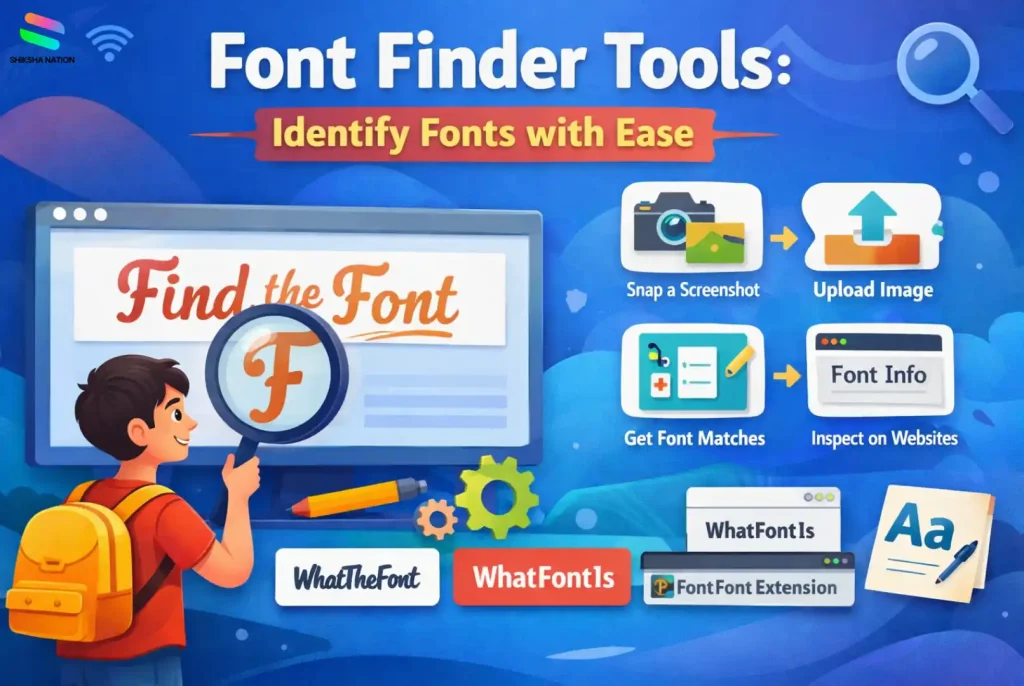
Which Is the Best Font Finder?
Many students, designers, and content creators ask which is the best font finder when they want to detect a font from an image or website. The answer depends on how you are trying to find the font. Some tools work better with images, while others help identify fonts used on websites.
Below are some of the most reliable font finder tools used by beginners and professionals.
Best Font Finder Tools
| Tool |
Best For |
Why It Is Useful |
| WhatTheFont |
Identifying fonts from images |
Upload a screenshot and the tool quickly suggests similar fonts. |
| WhatFontIs |
Large font database search |
One of the best tools to identify fonts with many free and paid font matches. |
| Fontspring Matcherator |
Accurate font matching |
Good option when you want detailed and close font results. |
| WhatFont (Chrome Extension) |
Detecting fonts on websites |
Lets you click on any text on a webpage and instantly see the font name. |
For students making presentations or Canva designs, image-based tools like WhatTheFont or WhatFontIs work best, while the WhatFont extension is useful for identifying fonts used on websites.
Best Font Finder Tools to Identify Fonts from Images
Students, designers, and content creators often come across attractive fonts in posters, logos, or social media designs. Instead of guessing the font name, they can use font finder tools that identify fonts directly from images.
These tools analyze the shapes of letters in a picture and compare them with large font databases. Within a few seconds, they suggest fonts that closely match the uploaded image. This is very useful for students working on school projects, presentations, Canva posters, or YouTube thumbnails.
Below are some reliable tools that help users detect fonts from images quickly and accurately.
WhatTheFont (By MyFonts)
WhatTheFont is one of the most popular tools used to detect font from image files. It is developed by MyFonts and is widely trusted by designers, students, and beginners who want to identify fonts quickly.
The tool works in a very simple way. You upload a screenshot or image that contains the text, and the system scans the letters. It then compares the characters with thousands of fonts in its database to suggest the closest matches.
How WhatTheFont Works
- Upload a clear image containing the text.
- The tool automatically highlights the letters.
- Its AI-based font recognition tool analyzes the shapes of the characters.
- Within seconds, it shows a list of similar fonts that match the image.
Because of this automated process, users do not need advanced design knowledge to identify fonts.
Why Many Designers Use WhatTheFont
There are a few reasons why WhatTheFont is widely used:
- Simple image upload process – even beginners can use it easily.
- Fast results – font suggestions appear within seconds.
- Large font database – increases the chances of finding the correct font.
- Works with different styles – including bold, decorative, and script fonts.
For example, a student preparing a school poster or PowerPoint presentation might see a font used in a YouTube thumbnail or Canva template. Instead of searching randomly, they can upload the image to WhatTheFont and quickly identify the font name.
Tips for Better Font Detection
To get better results when using this font recognition tool, keep these tips in mind:
- Use a clear and high-quality image.
- Make sure the text is straight and not tilted.
- Crop unnecessary background from the image.
These small steps improve accuracy and help the tool detect fonts from images more effectively.
WhatFontIs
WhatFontIs is another popular platform used to identify fonts from pictures. It is helpful for students, designers, and content creators who want to find font from image online without manually searching through hundreds of font styles.
One of the biggest strengths of WhatFontIs is its very large font database. The tool compares the uploaded image with hundreds of thousands of fonts, which increases the chances of finding a close or exact match.
Key Features of WhatFontIs
- Huge font database that includes many font styles
- Supports both free and commercial fonts
- Works with screenshots from posters, logos, or thumbnails
- Suggests similar alternatives if the exact font is not available
For example, a student designing a Canva poster or presentation slide may want to use the same font seen in a YouTube thumbnail or website banner. By uploading the screenshot to WhatFontIs, the tool analyzes the text and suggests possible matches within seconds.
Another useful feature is that the platform also shows free font alternatives. This is helpful for students who want to use similar fonts in their projects without purchasing premium fonts.
To get accurate results, the image should contain clear text with minimal background distractions. This allows the system to easily identify fonts from pictures.
Fontspring Matcherator
Fontspring Matcherator is known as a more professional-level font matching tool. It is commonly used by designers who want highly accurate results when identifying fonts from images.
The tool works by scanning the shapes of letters in the uploaded image and comparing them with a curated font library. This detailed comparison allows Fontspring Matcherator to provide high-quality font identification results, especially for complex or decorative fonts.
Key Benefits of Fontspring Matcherator
- Advanced font matching tool for precise results
- Handles complex font styles better than many basic tools
- Shows fonts that are visually very close to the uploaded image
- Useful for branding, posters, and design projects
Students learning design or digital marketing may find this tool useful when working on creative assignments, thumbnails, or presentation graphics. Instead of guessing the font style, they can upload an image and quickly get reliable suggestions.
Although the interface is simple, the technology behind Fontspring Matcherator is quite powerful, making it a useful option when other tools cannot accurately detect the font.
Best Tools to Identify Fonts on Websites
Sometimes students and designers do not need to upload images. Instead, they want to identify fonts used directly on a website. For example, a student may like the font used in a blog heading, landing page, or educational website.
In such cases, a website font finder or browser extension becomes very useful. These tools work inside your browser and allow you to inspect the font used on any webpage. With a simple click, they reveal the font name, size, style, and sometimes even the color.
This type of website font detector is helpful for students learning design, digital marketing, or web development because it allows them to understand how fonts are used in real websites.
Below are two commonly used browser tools.
WhatFont Chrome Extension
WhatFont is a widely used Chrome extension to identify fonts on websites. Once installed in your browser, it allows you to move the cursor over text and instantly see the font details.
This makes it very easy to learn which fonts are used on blogs, landing pages, or online learning platforms.
Key Features
- Detect fonts used on any webpage
- Shows font family, size, and style
- Works directly inside the browser
- Simple interface suitable for beginners
For example, a student designing a presentation or website project may notice an attractive heading font on an education blog. Using WhatFont, they can quickly check the font name and use a similar style in their own design.
Font Finder Browser Extension
Font Finder is another helpful website font detector used by designers and developers. It allows users to inspect detailed typography information on webpages.
The extension works by analyzing the webpage’s code and displaying the font information in a clear format.
What Font Finder Shows
- Font family used on the page
- Font size and weight
- Line spacing and styling
- CSS font properties
This tool is particularly useful for students learning web design or UI basics, as it helps them understand how different fonts are applied on websites. Instead of guessing, they can directly inspect the typography used on real web pages.
How Font Finder Tools Work
Many students wonder how a tool can look at an image and tell the exact font name. The process may seem complex, but most font finders follow a simple system based on pattern recognition and font databases.
These tools use font detection AI to study the shape and structure of letters in the uploaded image. The system then compares these shapes with thousands of fonts stored in its database to find the closest match.
Step-by-Step Process
- Image or text input
The user uploads a screenshot or image containing the text they want to identify.
- Letter shape analysis
The font recognition tool examines the curves, spacing, and thickness of each letter.
- Database comparison
The system compares these patterns with a large collection of fonts.
- Matching results
The tool shows a list of fonts that closely resemble the uploaded text.
For example, a student designing a school presentation or poster might upload a screenshot of a title font they like. The font finder analyzes the text and suggests similar fonts that can be used in their own project.
Because of this automated process, even beginners can identify fonts quickly without deep design knowledge.
How to Identify a Font from an Image (Step-by-Step)
Sometimes students see an attractive font in a poster, logo, Canva design, or YouTube thumbnail and want to use the same style in their own project. Instead of guessing the font name, you can follow a simple method using a font finder from image.
Below is a beginner-friendly guide that explains how to identify font from image using online tools.
Step 1: Take a Clear Screenshot
Start by taking a clear screenshot of the text that contains the font you want to identify. The letters should be visible and not blurred.
If possible, crop the image so that only the text remains. This helps tools to find fonts from images detect the letters more accurately.
Step 2: Upload the Image to a Font Finder
Next, visit a font finder from image tool such as WhatTheFont or WhatFontIs. Upload the screenshot directly on the platform.
Most tools allow you to drag and drop the image or upload it from your device.
Step 3: Highlight the Text Area
After uploading the image, the tool may ask you to select or highlight the letters. This step helps the system focus on the exact characters it needs to analyze.
Make sure the selected area includes clear and readable text.
Step 4: Review the Suggested Fonts
Once the analysis is complete, the tool shows a list of similar fonts. These suggestions are based on how closely the letters match the uploaded image.
Students working on presentations, posters, or design assignments can choose the closest font and use it in their own work.
Tips to Improve Font Detection Accuracy
Font finder tools work best when the uploaded image is clear and easy to read. If the image quality is poor or the text is distorted, the tool may not be able to identify font from image correctly.
Students using the best font identifier online can improve accuracy by following a few simple steps before uploading the image.
Use Clear and High-Quality Images
Make sure the screenshot or photo is sharp and readable. Blurry or pixelated images make it difficult for the system to recognize letter shapes properly.
If possible, capture the text from the original source instead of taking a low-quality photo.
Avoid Tilted or Distorted Text
Text that is rotated, curved, or stretched can confuse the detection system. Try to upload images where the text is straight and properly aligned.
This allows the tool to analyze the letter structure more accurately.
Crop Unnecessary Background
Before uploading the image, remove extra background elements like pictures, icons, or patterns.
Cropping the image so that only the text remains helps the tool focus on the letters and improves the chances of finding the correct font.
Free Font Finder Tools You Can Try
Many students and beginner designers prefer free font finder tools when working on school projects, presentations, or creative assignments. These tools help users identify fonts quickly without needing paid design software.
Below are some reliable options that work well for beginners.
WhatTheFont
WhatTheFont is a widely used best font identifier online for detecting fonts from images. Users simply upload a screenshot, and the tool suggests similar fonts within seconds.
WhatFontIs
WhatFontIs allows users to upload images and compare text with a large font database. It also suggests free font alternatives, which can be helpful for students working on design projects.
WhatFont Browser Extension
The WhatFont extension works directly in your browser. It lets users check fonts used on websites by simply hovering over the text, making it useful for learning typography from real web pages.
When Students and Designers Use Font Finder Tools
Font finder tools are useful whenever someone wants to use a similar font style seen in an image, poster, or website. Many students and beginner creators use these tools while preparing digital projects or learning basic design.
Understanding how designers identify fonts also helps students improve the visual quality of their work.
Common Situations Where Font Finders Are Useful
- School presentations – Students may want attractive heading fonts for PowerPoint slides.
- Canva posters – Helpful when creating posters for school activities or events.
- YouTube thumbnails – Content creators often search for bold and eye-catching fonts.
- Project designs – Useful for reports, infographics, or digital assignments.
For example, a student working on a science exhibition poster or class presentation might notice a good font used online. A font finder allows them to identify the font and use a similar style in their own design.
Conclusion
Choosing the right font finder depends on what you want to identify. If your goal is to detect fonts from images, WhatTheFont is often considered the best overall option because it is simple and quick to use.
If you need access to a larger collection of fonts, WhatFontIs is helpful because it compares your image with a very large font database and also suggests similar alternatives.
For identifying fonts used directly on webpages, the WhatFont browser extension works best.
So, when asking which is the best font finder, the answer depends on your need – image-based detection, large font search, or website font inspection.
FAQs About Font Finder Tools
Q. How can I identify a font from an image?
To identify a font from an image, upload a clear screenshot to a font finder such as WhatTheFont or WhatFontIs. The tool analyzes the shapes of letters and compares them with thousands of fonts in its database. Within a few seconds, it shows fonts that closely match the uploaded text. This method is useful for students creating posters, presentations, or thumbnails.
Q. Which is the best font finder online?
Many users search for which is the best font finder online. Tools like WhatTheFont, WhatFontIs, and Fontspring Matcherator are widely used because they provide accurate results. WhatTheFont works well for quick image detection, while WhatFontIs is helpful when you want more font alternatives.
Q. Are font finder tools free?
Yes, many font finder tools offer free access. Platforms like WhatTheFont and WhatFontIs allow users to upload images and get font suggestions without payment. Some results may include premium fonts, but most tools also suggest free alternatives, which is useful for students working on design assignments.
Q. Can I detect fonts used on websites?
Yes, fonts used on websites can be identified using browser extensions. Tools like WhatFont or Font Finder act as a website font detector and allow users to click on any text to see the font name, size, and style. This helps beginners understand how fonts are used on real websites.
Q. Do font finder tools work with logos?
In many cases, font finders can identify fonts from logo images, especially when the text is clear and not heavily modified. However, some logos use customized typography, which may not match any exact font in the database. In such cases, the tool usually suggests similar fonts.
Q. Why do designers use font finder tools?
Designers use font finders to quickly recognize fonts used in images, posters, or websites. This saves time and helps maintain visual consistency when creating presentations, thumbnails, or marketing designs.
Q. What type of image works best for font detection?
For better accuracy, use an image where the text is clear, straight, and not blurred. Cropping unnecessary background elements also helps the tool focus on the letters and improve results.
Q. Can students use font finder tools for school projects?
Yes, students often use font finder tools while preparing school presentations, posters, and digital assignments. Identifying the right font can make projects look more organized and visually appealing.
Q. Do font finder tools always give the exact font?
Not always. Sometimes the tool may suggest fonts that are very similar but not identical. This usually happens when the original font is custom-made or edited in the image.
Q. Is it safe to use online font identifier tools?
Most well-known font identifier online tools are safe to use. They simply analyze uploaded images to detect letter patterns and do not require personal information.